Focus guides · June 24, 2026
How to Block Apps on iPhone (3 Ways That Actually Work)
You can block distracting apps on iPhone in three ways, from Apple's built-in tools to a dedicated blocker. Here is how each works, where each falls short, and the setup most people actually stick with.
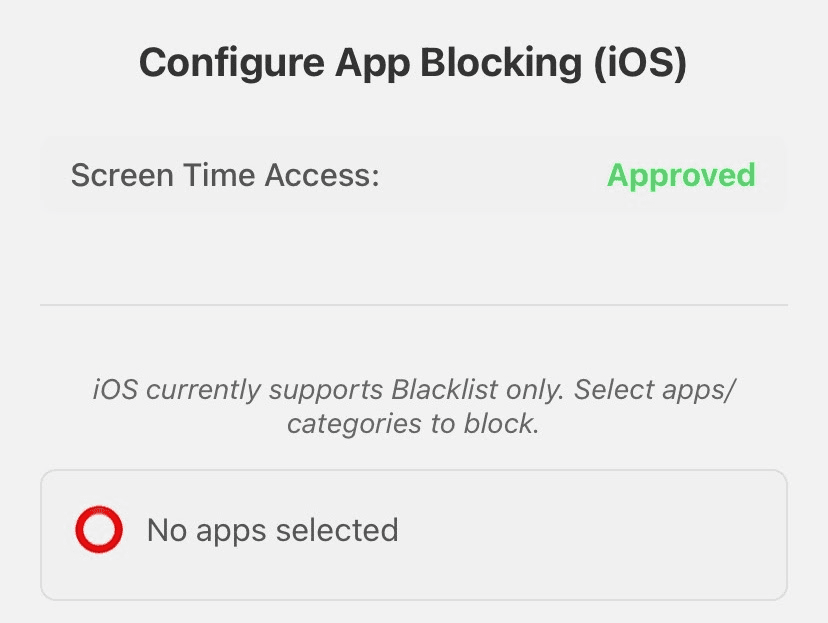
1. Screen Time app limits (built in)
Go to Settings → Screen Time → App Limits, add a limit for a category (like Social) or specific apps, and set a daily time. When you hit the limit, the app is greyed out.
The catch: the "Ignore Limit" button is one tap away, and most people tap it without a second thought. Screen Time tells you that you have a problem, but it does almost nothing to stop you in the moment.
2. Focus modes (built in)
Focus modes (Settings → Focus, or the Control Center) silence notifications and can hide distracting apps from your Home Screen. Great for quieting noise, but they do not actually block you from opening an app, so they only help if notifications were your main problem.
3. A dedicated app blocker (the one that sticks)
A dedicated blocker like Lock In adds the one thing the built-in tools lack: real friction. You pick the apps to block, start a focus session, and they stay blocked until your timer ends. Unlocking early takes a deliberate hold, just enough of a pause to make you reconsider.
It also turns focusing into a habit: you build a daily streak and earn minutes for the time you stay locked in, so there is a reason to come back tomorrow. That is the part Screen Time never gives you.
The simplest setup
- Install Lock In and choose the apps that derail you most.
- Set a session length and tap Lock In.
- Those apps stay blocked until the timer is done, no easy "ignore" button.
- Keep the streak going and it becomes automatic.
Block distracting apps on your iPhone
Free, no subscription. The friction that makes it actually stick.